

How to Choose Your Next Game Without Getting Lost in the Backlog
Stop browsing endless lists. Make a choice based on your next session, not someone else’s ranking.
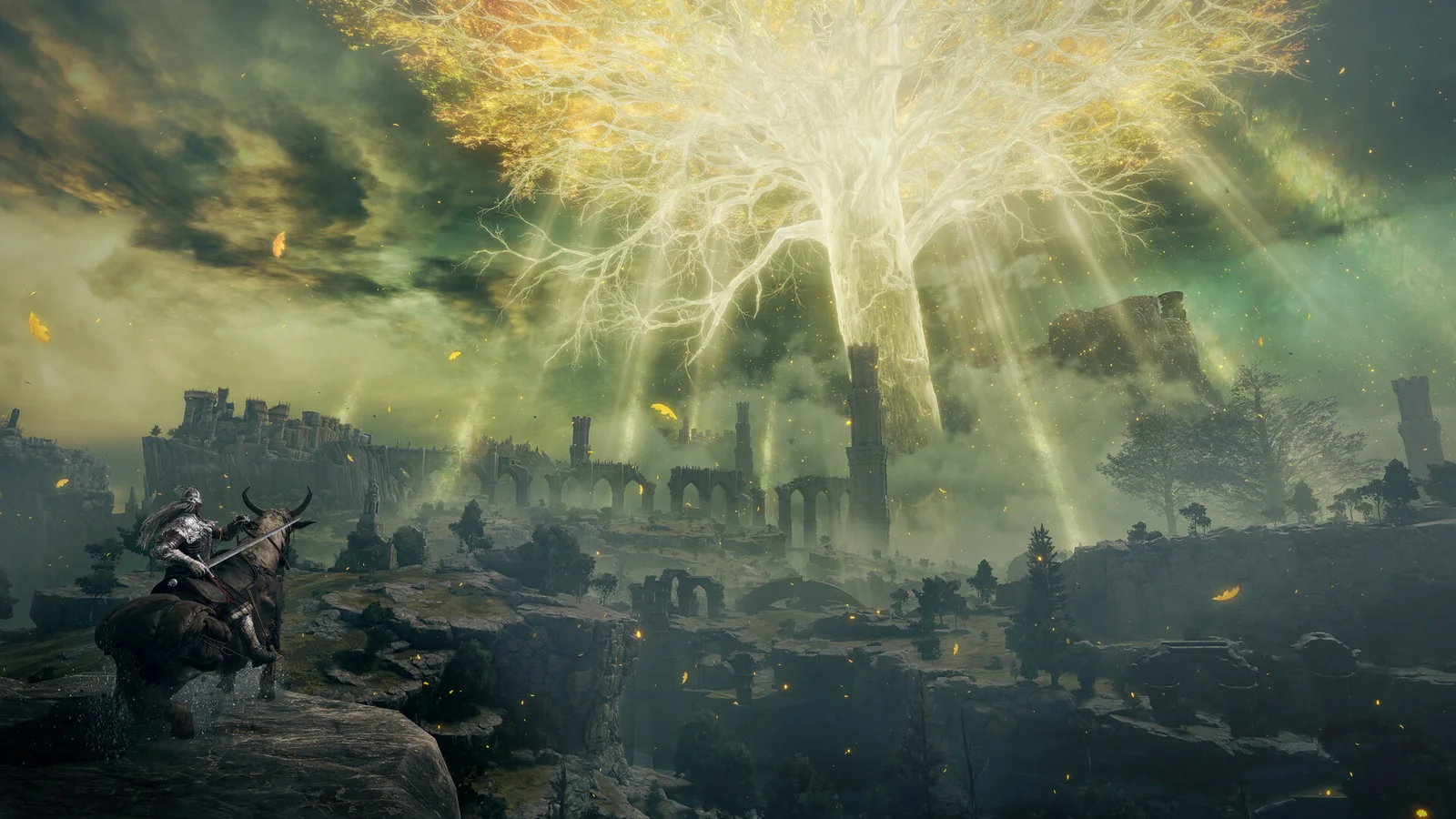
Start with the session you actually have
A good recommendation can still be a poor choice tonight. Begin with four constraints: how long you want to play, whether you are playing alone, which device is available and how much effort you want to spend learning a new system. A spare half-hour and an open weekend are different decisions.
Filter for compatibility, then taste
Use Explore to narrow the collection by platform, genre and play style. Use GameMatch when you want all your selected preferences considered together. These are editorial tags, not guarantees of technical compatibility; confirm supported devices, editions and controls with the current publisher or store listing.
Separate a must-have from a preference. “Must support my platform” is a requirement. “Prefer RPGs” is a preference. If nothing matches, relax a preference rather than silently accepting a platform mismatch.
Compare the decision, not just the box art
For two or three candidates, write down what you want from each: an immediate challenge, a story to return to, or a shared session. Open Compare for a side-by-side view, then look for original gameplay footage from the developer or publisher. Do not interpret PlayNorio’s illustrated game cards as screenshots of gameplay.
Game descriptions can be useful starting points but may omit performance details, accessibility options or platform-specific features. Check a product page or developer documentation for those facts before purchasing.
Use your existing collection first
Before buying something new, open My Games. If you already own an unplayed title that fits the session, it may solve tonight’s choice without another purchase. PlayNorio’s Play Planner can make a random pick from matching games; a random result is a decision aid, not a promise that the game is right for you.
If you do not like the first pick, change one preference and try again. This turns a vague indecision into a quick, repeatable process.
A simple example
- Tonight: one hour, single-player, PC.
- Filter: select PC and single-player on GameMatch.
- Shortlist: compare a few matching entries rather than dozens.
- Confirm: visit the official store page for your chosen game to verify the PC edition, requirements and price.
- Decide: save the game locally or start a session and record how it went.
Method note
This guide describes an editorial decision method using PlayNorio’s existing filters and tools. It does not make a claim about the quality or performance of any individual game.